> For the complete documentation index, see [llms.txt](https://docs.startdeliver.io/llms.txt). Markdown versions of documentation pages are available by appending `.md` to page URLs; this page is available as [Markdown](https://docs.startdeliver.io/managing-customers/deals/using-deals.md).

# Using Deals

Track deals for your customers on a pipeline board, from draft to won or lost.

**Where to find it:** Main menu → **Deals** (the Deals board) | Customer profile → **Deals**

**Who can access it:** Team members create and work with deals. Admins set up products and the board in **Settings → Deals**. Your permission settings decide exactly what each team member can do.

**Turn on Deals:** An admin turns Deals on in **Settings → Deals**. To show Deals in the main menu and in the customer sidebar, an admin also adds it there (see [Main menu](https://docs.startdeliver.io/platform-settings/main-menu.md)).

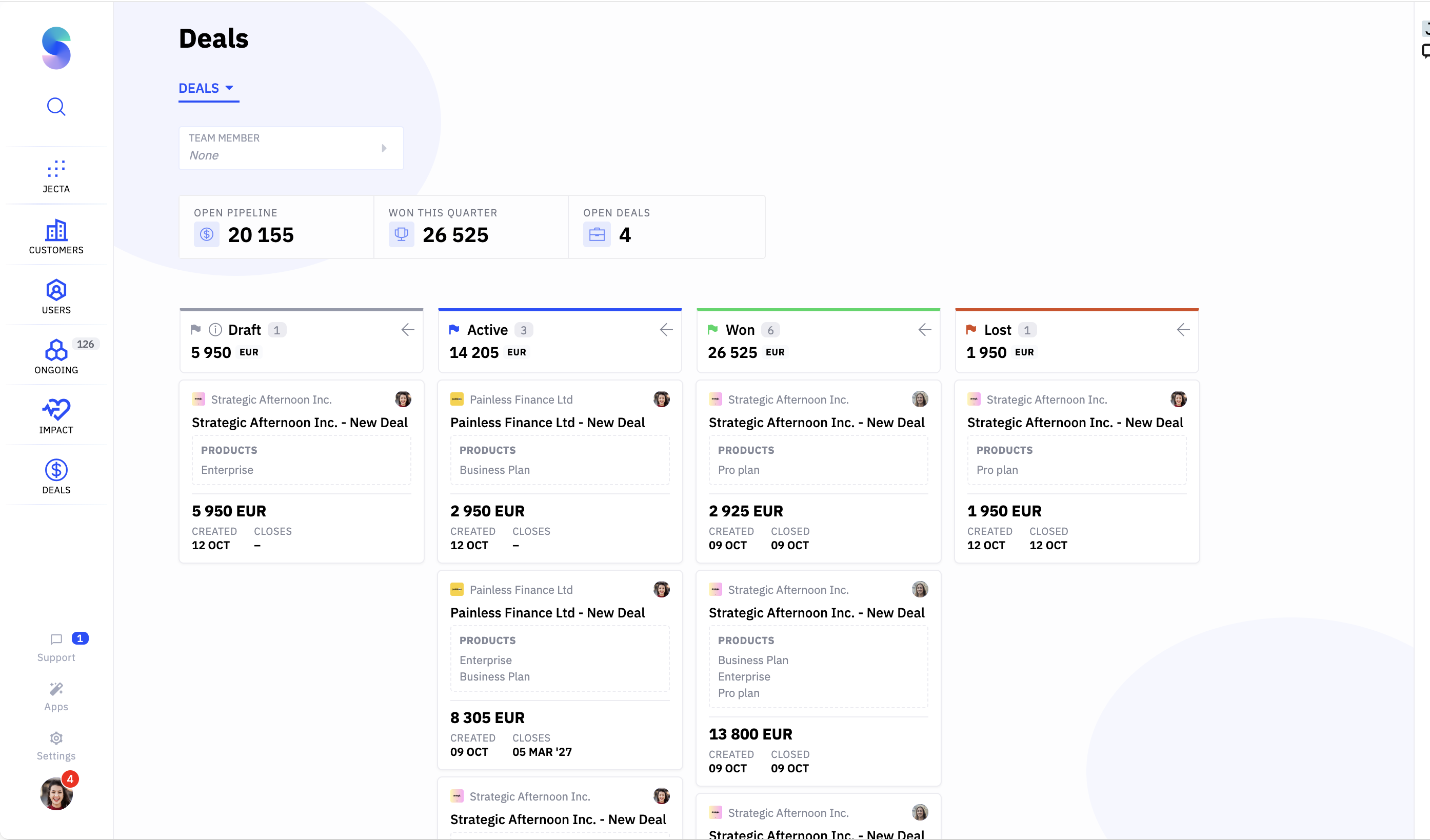
<figure><img src="https://files.gitbook.com/v0/b/gitbook-x-prod.appspot.com/o/spaces%2Fttka6LKL3bc1LsaDzuI5%2Fuploads%2FE94AIqmdF3PebHvdFFCP%2FSka%CC%88rmavbild%202026-10-12%20kl.%2011.32.02.png?alt=media&#x26;token=be1a2164-a6e6-4a83-9b7a-ed9b328036eb" alt="The Deals board"><figcaption><p>The Deals board, with deals in the Draft, Active, Won and Lost columns.</p></figcaption></figure>

## What it does

Deals let you track new business, upsells and renewals for your customers directly in Startdeliver. Each deal belongs to a customer, contains one or more products with prices, and has a status. The Deals board shows all deals as cards in columns, so you can follow your pipeline at a glance.

Deals do not change the customer's data. Moving a deal to Won does not update the customer's ARR or products.

***

## The Deals board

Open **Deals** in the main menu. At the top of the board you see:

* **Open pipeline** – the total value of open deals
* **Won this quarter** – the total value of deals won this quarter
* **Open deals** – the number of open deals

Use the **Team member** filter to show only the deals for one team member.

Each column shows the deals with one status: **Draft**, **Active**, **Won** and **Lost**. A card shows the customer, the deal name, the products, the total value, when the deal was created and when it is expected to close (or when it was closed).

### Move a deal to another status

Drag the card to another column to change its status. A draft can be moved to Active, Won or Lost, but a deal cannot be moved back to Draft. You can also change the status when you edit the deal.

***

## Create a deal

1. Open the customer profile and select **Deals** in the sidebar.
2. Click **Create deal** (or **Add**).
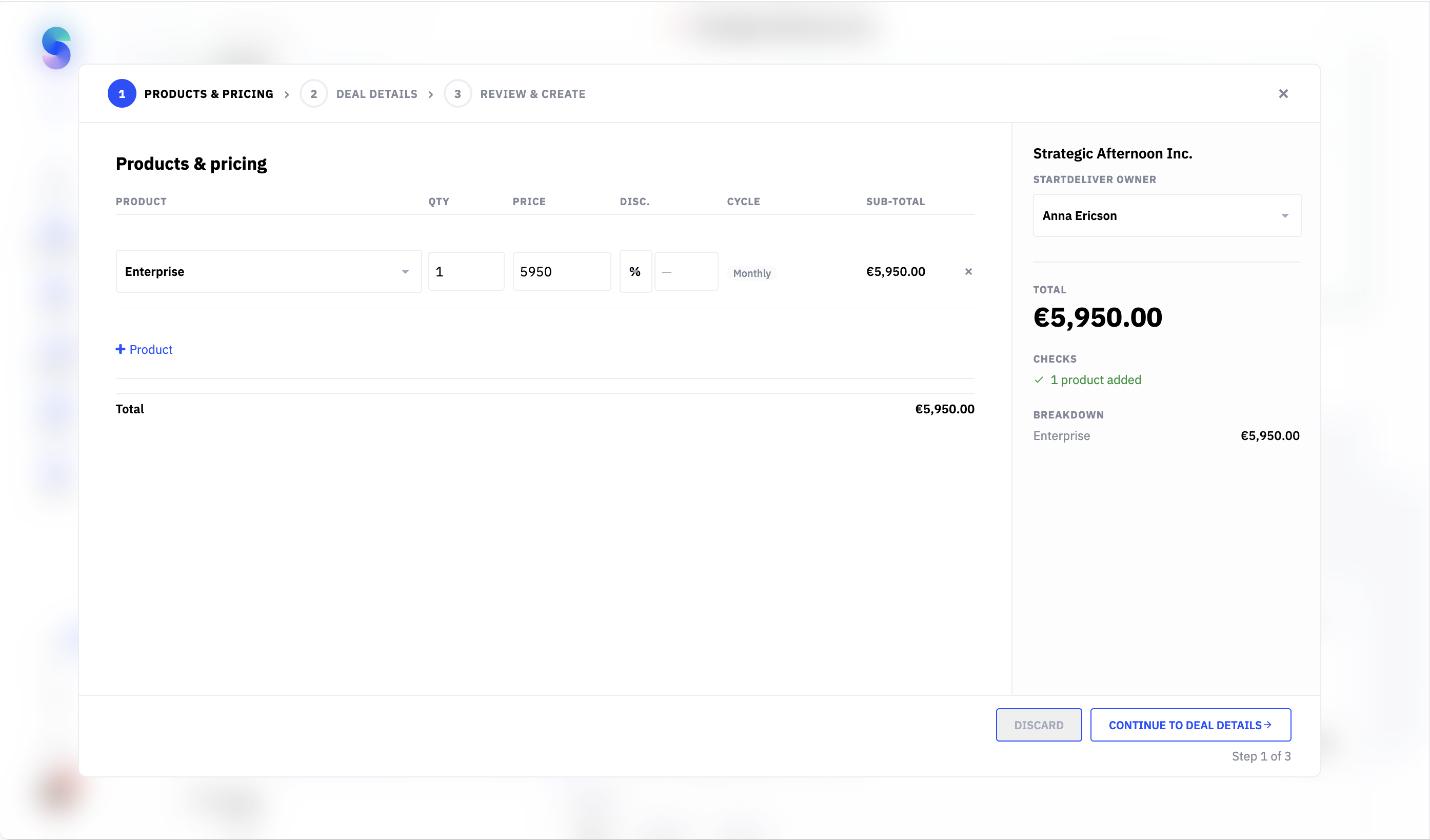
3. **Products & pricing:** Add one or more products. For each product, set the quantity, price and an optional discount (as a percentage or an amount). The billing cycle comes from the product. Choose the **Startdeliver owner** of the deal on the right.
4. **Deal details:** Fill in the deal details (see the table below).
5. **Review & create:** Check the summary and click **Create deal**.

<figure><img src="https://files.gitbook.com/v0/b/gitbook-x-prod.appspot.com/o/spaces%2Fttka6LKL3bc1LsaDzuI5%2Fuploads%2FStRqM0Lb5Dk2LW3u60iS%2FSka%CC%88rmavbild%202026-10-12%20kl.%2011.16.50.png?alt=media&#x26;token=e2e968e3-f263-473a-ad9c-1bbd6fe16ec0" alt="Step 1 of the Create deal window: Products &#x26; pricing"><figcaption><p>Step 1 of Create deal: add products, prices and the deal owner.</p></figcaption></figure>

| Field               | Description                                                                 |
| ------------------- | --------------------------------------------------------------------------- |
| Name                | The name of the deal. Defaults to the customer name followed by "New Deal". |
| Status              | Draft, Active, Won or Lost. Required.                                       |
| Currency            | The currency of the deal. Required.                                         |
| Start date          | When the deal starts.                                                       |
| Expected close date | When you expect the deal to close.                                          |
| Contract ref        | A reference to the contract, for example a contract number.                 |
| Payment terms       | The agreed payment terms.                                                   |
| Notes               | Free text about the deal.                                                   |

### See a customer's deals

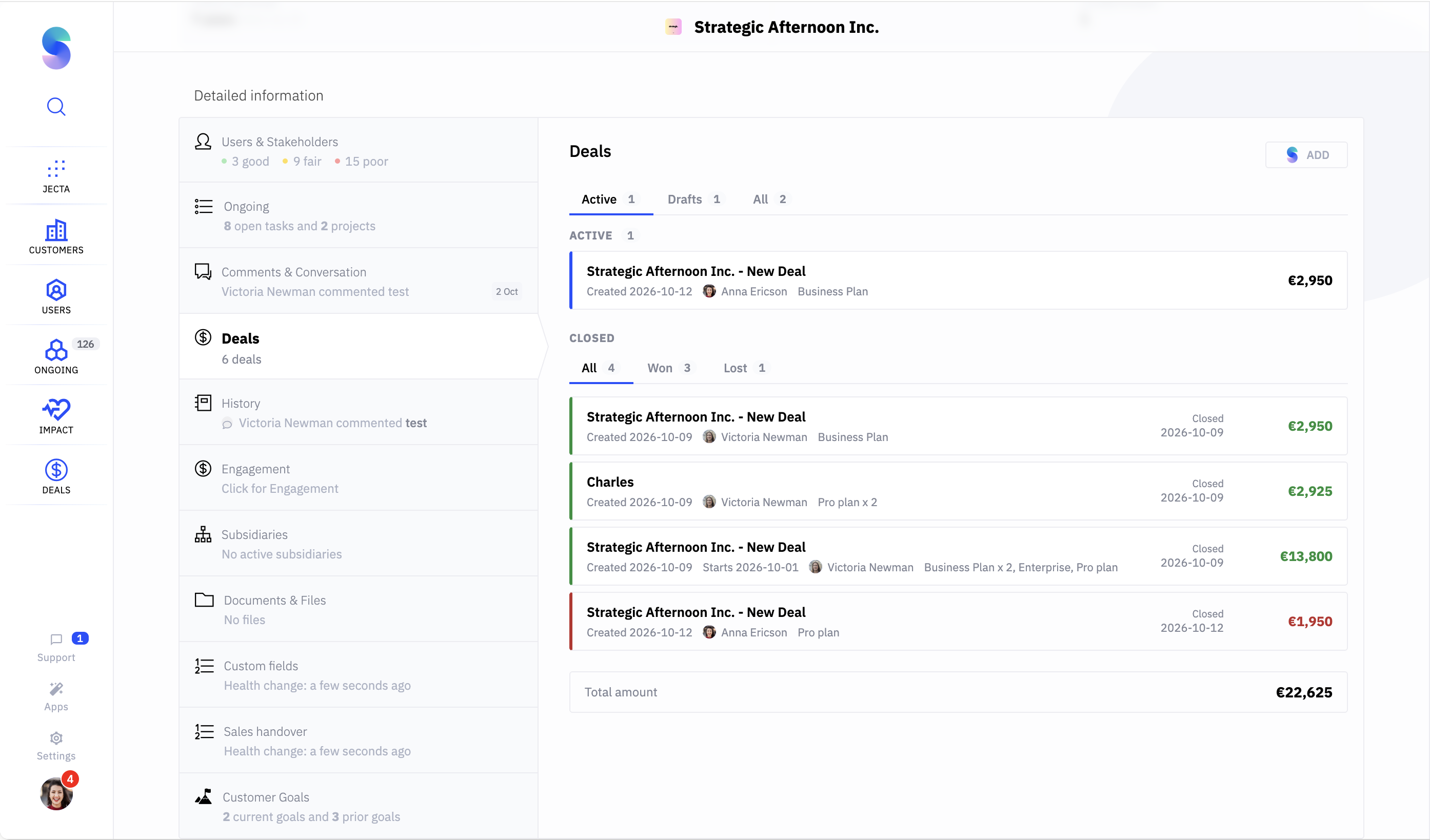
On the customer profile, the **Deals** section shows open deals in the tabs **Active**, **Drafts** and **All**. Closed deals are listed under **Closed**, with the tabs **All**, **Won** and **Lost**. Each deal shows when it was created, the owner, the products and the value. The total amount is shown at the bottom. Click a deal to open it.

<figure><img src="https://files.gitbook.com/v0/b/gitbook-x-prod.appspot.com/o/spaces%2Fttka6LKL3bc1LsaDzuI5%2Fuploads%2FKLAid0cGexqJqIuOjmUf%2FSka%CC%88rmavbild%202026-10-12%20kl.%2011.17.13.png?alt=media&#x26;token=df8f24a9-41a5-44a4-9a8f-4006ae1f1594" alt="The Deals section on a customer profile"><figcaption><p>The Deals section on a customer profile, with open and closed deals.</p></figcaption></figure>

***

## Edit a deal

Click the deal on the board or on the customer profile, then click **Edit**. Go through the steps, make your changes and save. When a deal is set to Won, the closed date is set automatically.

***

## Deal statuses

| Status | Meaning                               |
| ------ | ------------------------------------- |
| Draft  | The deal is being prepared.           |
| Active | The deal is open and being worked on. |
| Won    | The deal is closed and won.           |
| Lost   | The deal is closed and lost.          |

***

## Customize the board

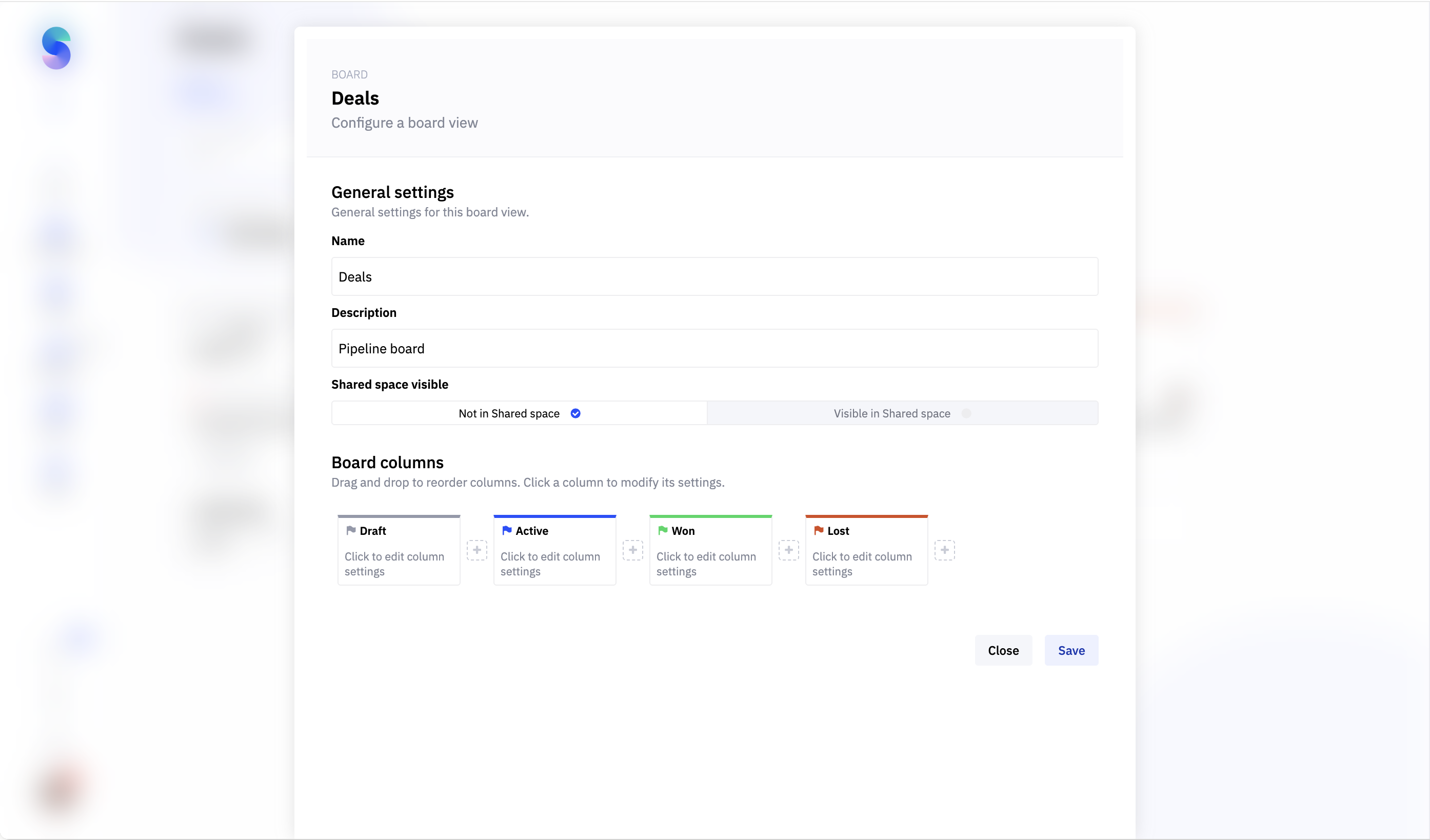
Admins can change how the board looks. Click the board name (**Deals ▾**) at the top of the board and select **Edit board**. You can change:

* **Name and description** of the board
* **Shared space visible** – whether the board is shown in Shared Space
* **Board columns** – drag columns to reorder them, or click + to add a column

Click a column to set its name, icon and color, whether it is collapsed by default, and which deal status it shows.

<figure><img src="https://files.gitbook.com/v0/b/gitbook-x-prod.appspot.com/o/spaces%2Fttka6LKL3bc1LsaDzuI5%2Fuploads%2FQAeKau479qAMobUKFTOP%2FSka%CC%88rmavbild%202026-10-12%20kl.%2011.17.55.png?alt=media&#x26;token=9339da03-48f9-401e-b24e-624d730bb62c" alt="The Edit board window"><figcaption><p>The Edit board window, where admins change the board settings and columns.</p></figcaption></figure>

***

## Related pages

* [Deal products & pricing](https://docs.startdeliver.io/managing-customers/deals/deal-products-and-pricing.md)
* [HubSpot](https://docs.startdeliver.io/integrations-and-your-stack/hubspot.md)